Passthrough for eGPUs on M-series Macs

PEGPU

A very unofficial, very experimental passthrough runtime for getting NVIDIA* RTX 30/40/50-series GPUs in Thunderbolt eGPU enclosures doing useful work on macOS through Linux virtualization.

* Compatibility/purpose labels only. PEGPU is not endorsed by, sponsored by, affiliated with, or encouraged by Apple, macOS, NVIDIA, Linux, Thunderbolt, QEMU, UTM, Debian, llama.cpp, or any other named company, protocol, project, or maintainer.

Important upfront warning: PEGPU requires installing an experimental kernel driver extension that has not yet been notarized by Apple. As a result, System Integrity Protection (SIP) must be disabled before PEGPU can be installed. Show SIP disable steps

To disable SIP:

  1. Shut down your Mac.
  2. Press and hold the power button until startup options appear.
  3. Select Options to enter Recovery Mode.
  4. Open Terminal from the menu bar.
  5. Run the following command:
csrutil disable

Restart your Mac normally.

Important: Understand and consider the security risks of disabling SIP before proceeding.

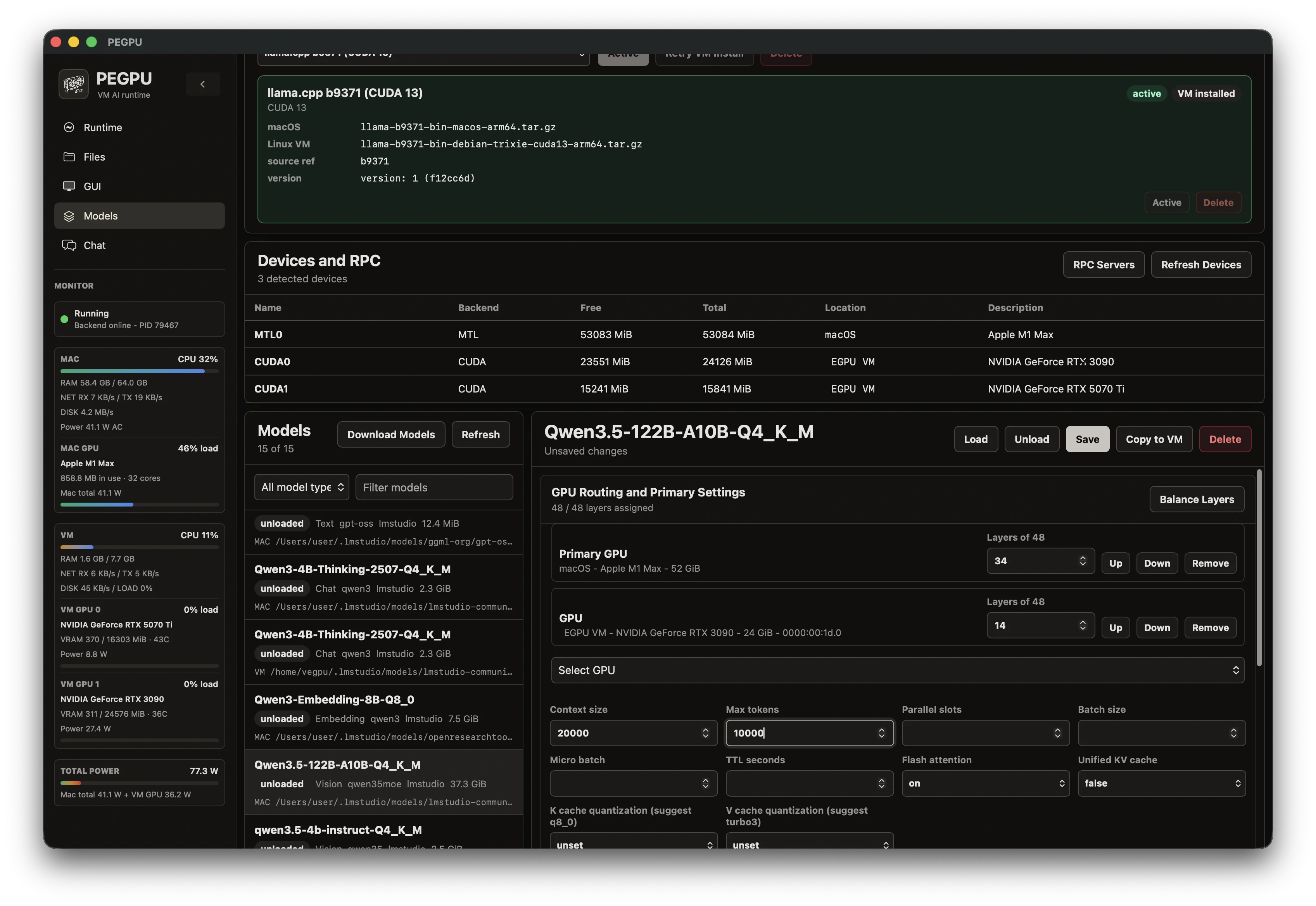
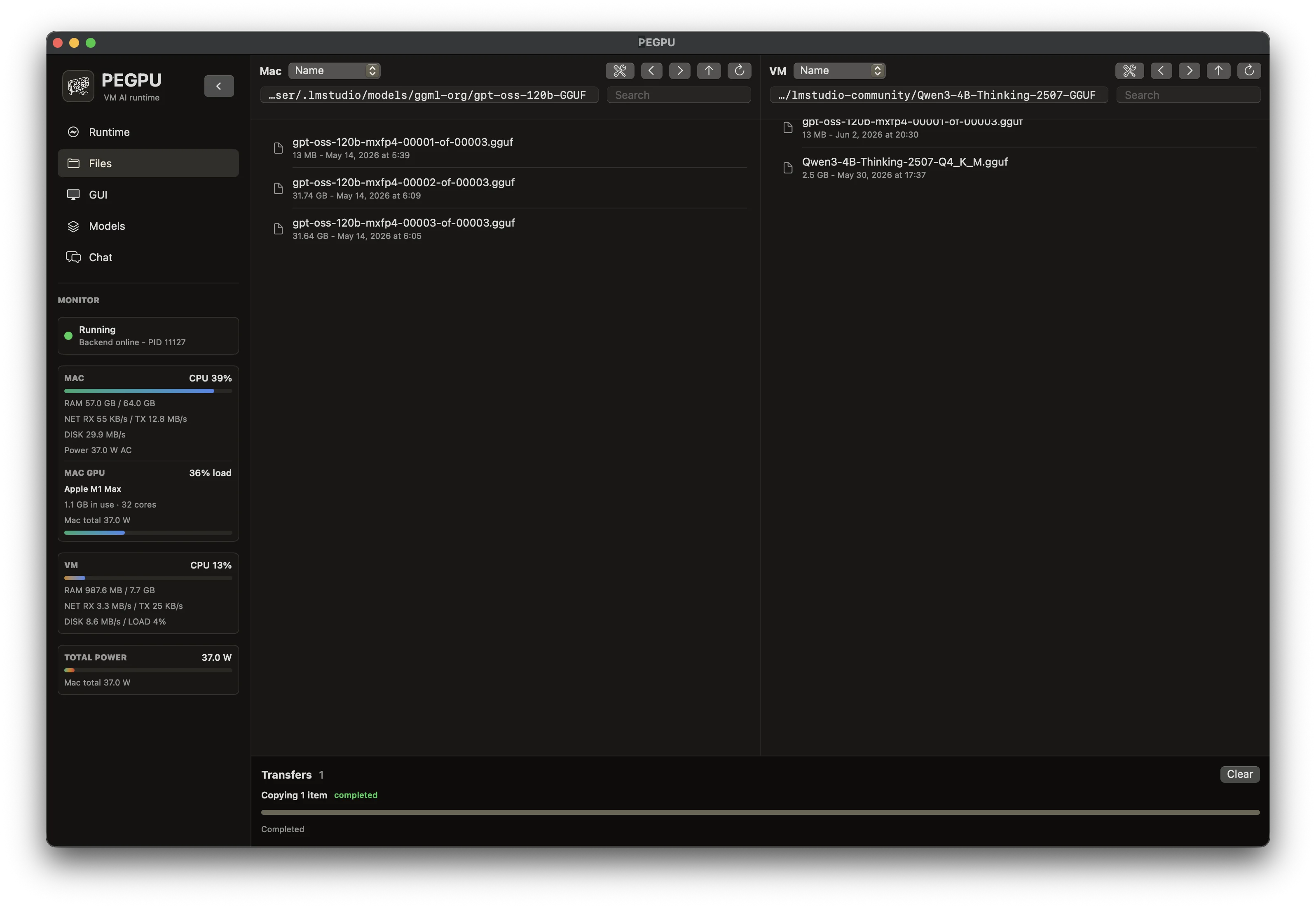
tested split load Qwen 3.5 122B MoE LLM Q4_K_M
memory split M1 Max 64 GB unified + RTX 3090 24 GB VRAM
split-run result 32 Mac layers + 16 eGPU layers · 28.14 tok/s
what this is

Thunderbolt 3/4 eGPU passthrough for Macs that were never supposed to have it.

Scott J. Goldman found the wild bit: a way to pass Thunderbolt 3/4 eGPU PCIe devices into a Linux VM on Apple Silicon by combining customized QEMU with a macOS DriverKit host extension. PEGPU builds on that base and tries to turn the whole thing into something you can actually live with.

PEGPU

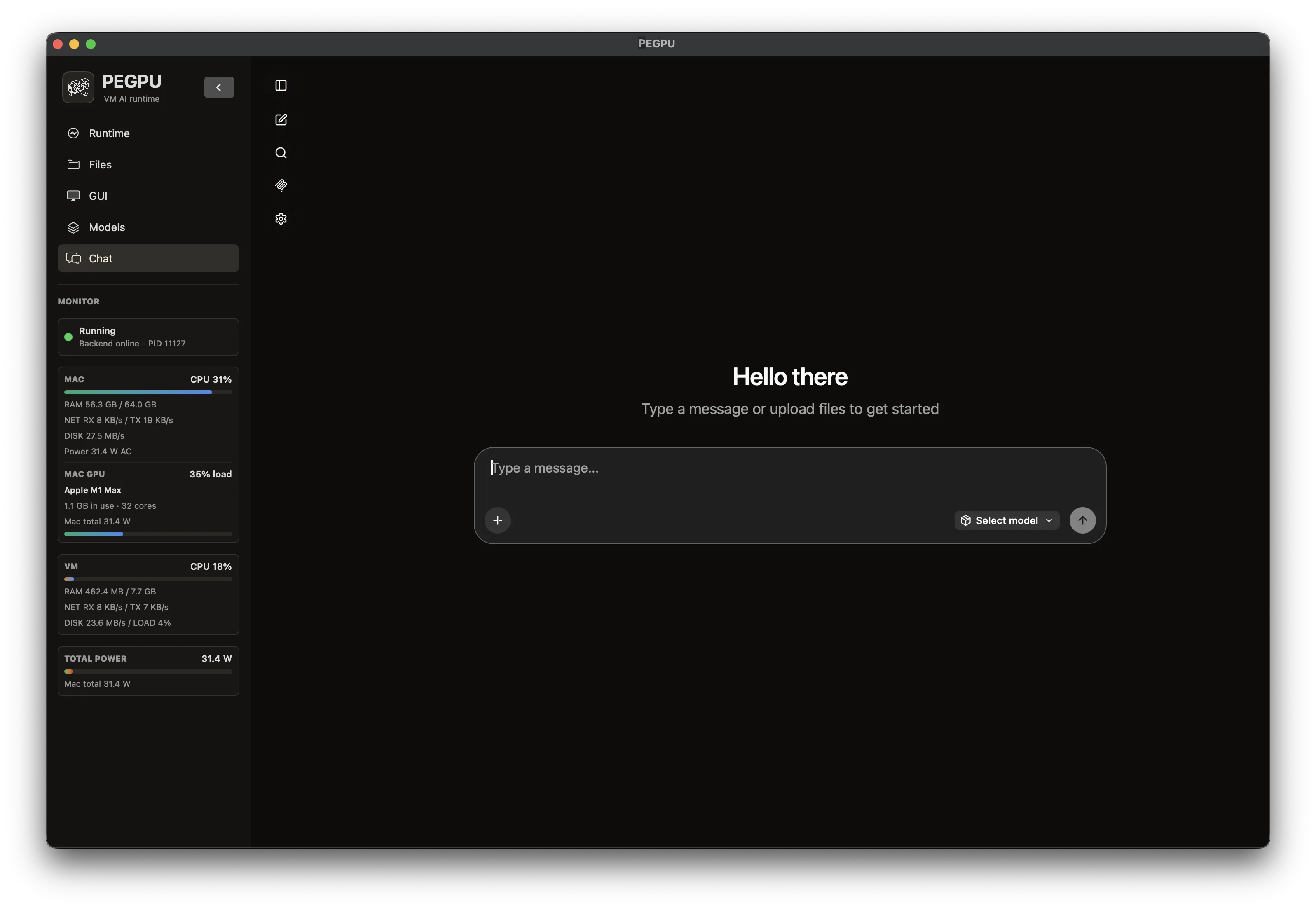
Native macOS UI, UTM-derived GUI display integration, ANGLE and CocoaSpice support, sidecar metrics, embedded file manager, SSH terminal, VM setup, port routing, web UI tabs, llama.cpp RPC orchestration, llama-swap style runtime management, and less ritual around starting the thing. PEGPU is distributed under the permissive Apache 2.0 license and uses components with their own licenses and notices.

PEGPU Machine

It owns the patched QEMU runtime, the DriverKit/VFIO mechanics, firmware, guest DMA driver package, VM launch shape, and the UTM/QEMU-side mechanics that make accelerated visual sessions possible. PEGPU Machine is based on QEMU* and distributed under GPL 2.0. Components carry their own licenses and notices.

why bother

The point is not just booting a VM. The point is making the eGPU useful.

AI

Split large models across Mac* and NVIDIA* memory

A managed guest and host llama.cpp* runtime can split work across macOS* unified memory GPUs and NVIDIA* GPUs inside the VM. In my test, a Qwen* 3.5 122B MoE LLM quantized as Q4_K_M reached 28.14 tokens per second split across two devices: an M1 Max* with 64 GB unified memory handling 32 layers, and an RTX* 3090 with 24 GB VRAM handling 16 layers. When a workload runs fully on the passed-through eGPU, it runs at the card's normal Linux* speed too, including ComfyUI* video generation models such as Wan* 2.2.

GUI

Accelerated display sessions

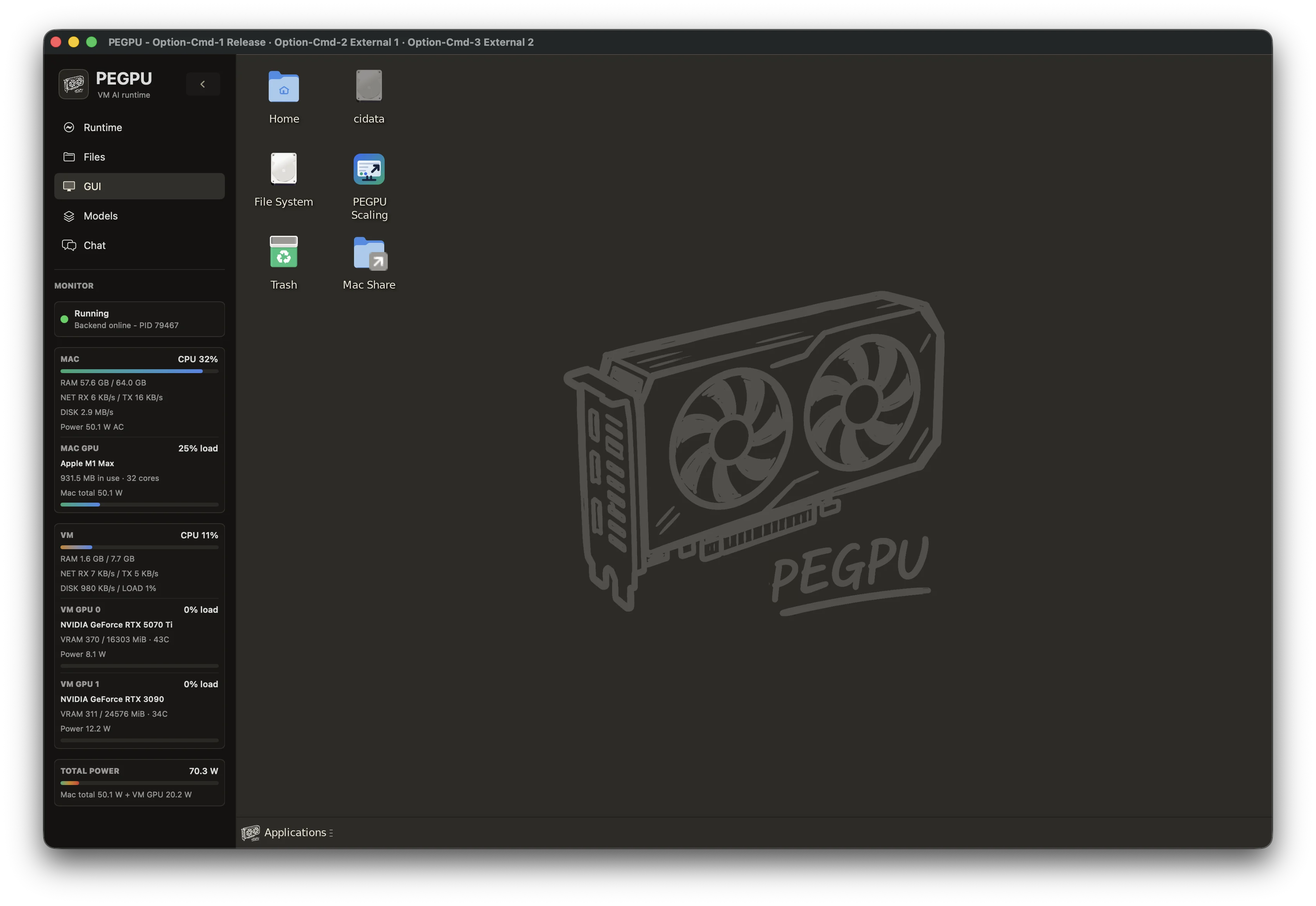
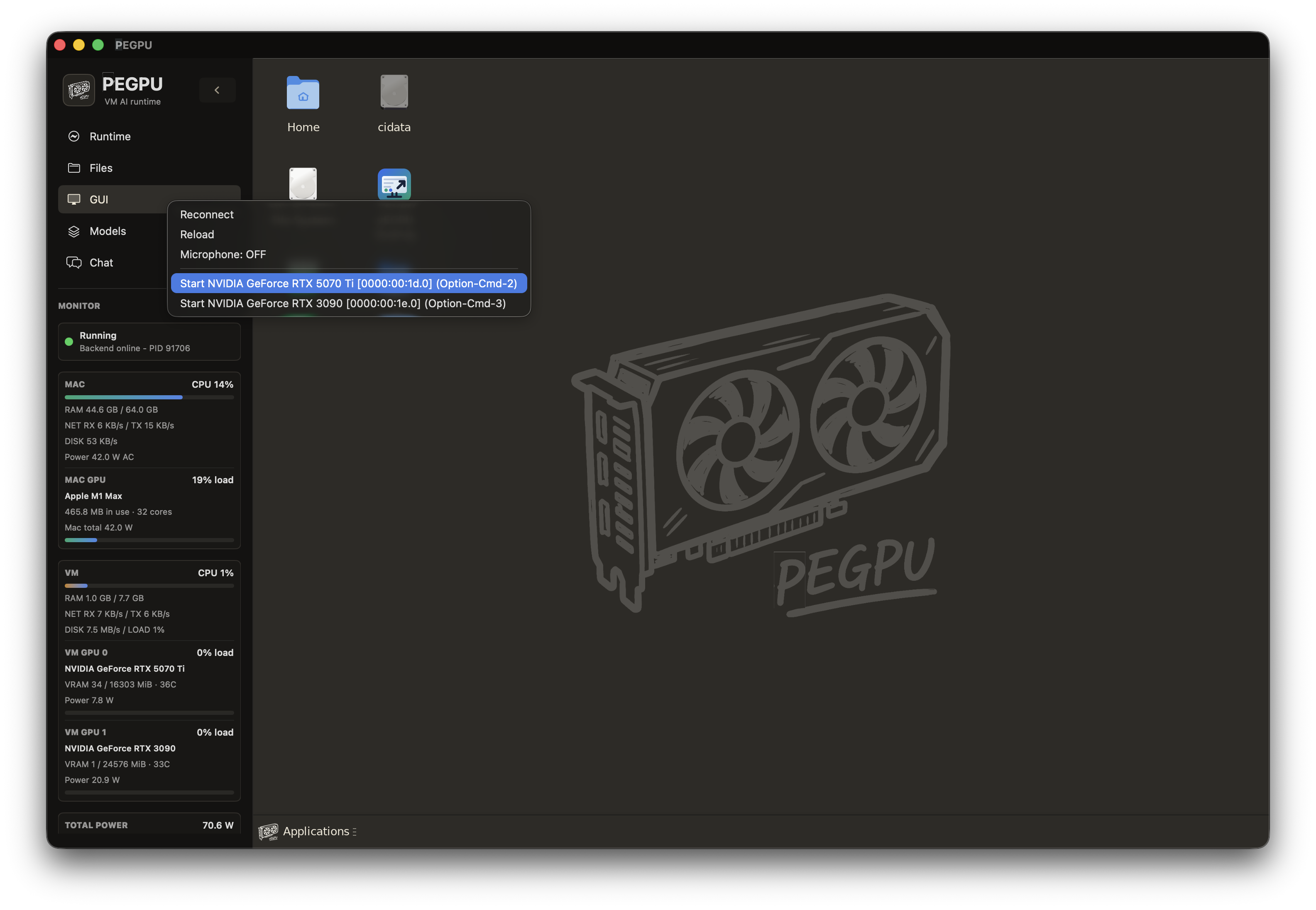
Use external NVIDIA*-driven displays for 3D rendering, ComfyUI* video generation, random Linux* desktop things, or games. Use the internal UTM*-style window when you want smooth GUI output without spending the external GPU on the desktop.

OPS

Recipe-based Debian* runtime

PEGPU downloads the official Debian* cloud image and scripts the setup. It does not ship a bundled VM and it does not vendor NVIDIA* drivers or CUDA*. The helper only installs from NVIDIA* repositories inside Linux*.

X11

XFCE* because boring wins here

XFCE* on Xorg* is light, old, and conservative in exactly the useful way. The Wayland* display path from the base project can be luck-based on external screens, especially with wider or stranger monitors, and failures around custom DMA remapping can turn ugly fast. Xorg* handles this more gracefully in my testing: internal SPICE*/GL stays usable, external NVIDIA* displays can run on one or more eGPUs, and the XFCE* tree only adds about 250 MB idle RAM compared with headless mode.

* Names including NVIDIA, RTX, CUDA, macOS, Apple, Mac, M1 Max, Linux, Debian, Wayland, Xorg, XFCE, UTM, SPICE, Qwen, llama.cpp, ComfyUI, and Wan are compatibility or purpose references only. PEGPU is not affiliated with, endorsed by, sponsored by, or approved by those companies, projects, maintainers, or trademark owners.

read this twice

This can kernel panic your Mac if you treat Thunderbolt like a USB stick.

Never unplug an eGPU while QEMU is running

Stop the server from PEGPU, quit the tray runtime, or in the worst case kill QEMU from Activity Monitor. Do not yank the Thunderbolt cable while the VM server is alive. That is how you buy yourself a frozen Mac and a reboot.

The clean restart ritual

If you stopped the server and want to launch with eGPUs attached: unplug the eGPUs, wait 5 seconds, plug them back in, wait another 5 seconds, then start the server. Most of the time the GPUs attach.

First setup happens without eGPUs attached

Start the VM headless or GUI, let Debian finish its first boot work, run the NVIDIA installer if you use NVIDIA cards, stop the VM completely, then plug in your eGPUs and launch the server with the devices attached.

Choose graphics or compute for heavy sessions

Treat the external GPUs as either the graphics/rendering path or the compute path for a session. Heavy 3D rendering while loading AI models or other large compute jobs can overload PCIe passthrough and may kernel panic the Mac.

This is experimental, not production ready

Thunderbolt PCIe passthrough on Apple Silicon is not on parity with mature Intel Thunderbolt passthrough paths. Expect bugs, occasional macOS kernel panics, and forced restarts while the driver and runtime improve.

For AI, keep display rendering off the eGPUs

If you mainly want VLMs, ComfyUI, or other AI workloads, use the PEGPU GUI display as your primary display. It uses the Mac's internal graphics for 3D rendering, so external cards are not competing for limited passthrough capacity. Advanced users can enable headless-only mode in Developer Options and control the VM through the embedded terminal or SSH.

first run

Installation is the strange part, so here is the path through macOS security.

PEGPU is experimental kernel-driver-adjacent software for Apple Silicon Macs with SIP disabled, and the DriverKit extension is ad hoc signed. The warnings below are expected for this kind of package, but they are still real security decisions.

  1. Disable SIP on Apple Silicon. Shut down, boot to startup options, open Recovery Terminal, run csrutil disable, restart, and understand the security cost before continuing. PEGPU depends on an experimental DriverKit/VFIO path for Thunderbolt PCIe passthrough, so SIP must be disabled before macOS will allow the required host-side extension flow.
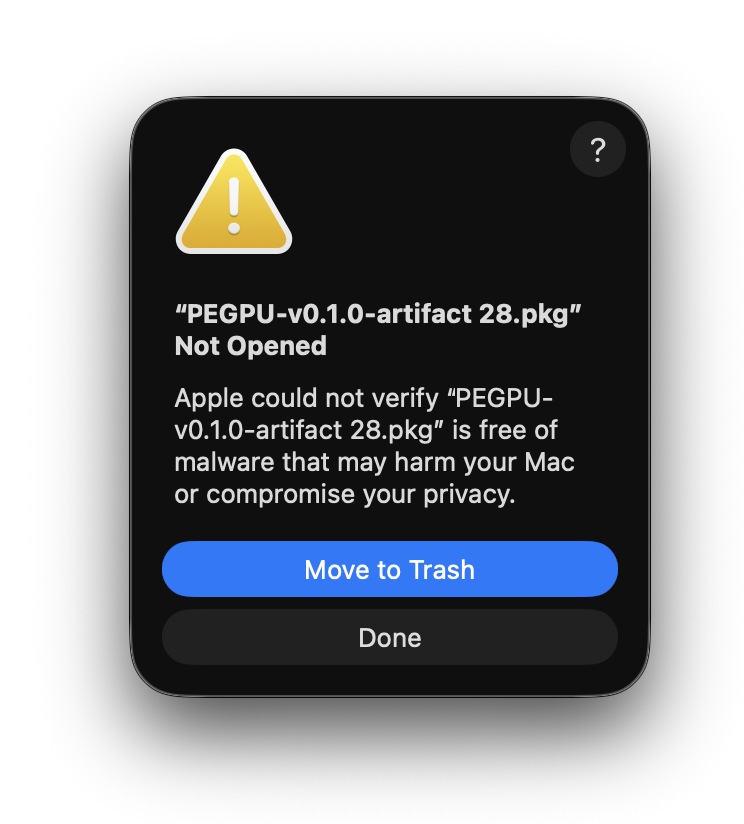
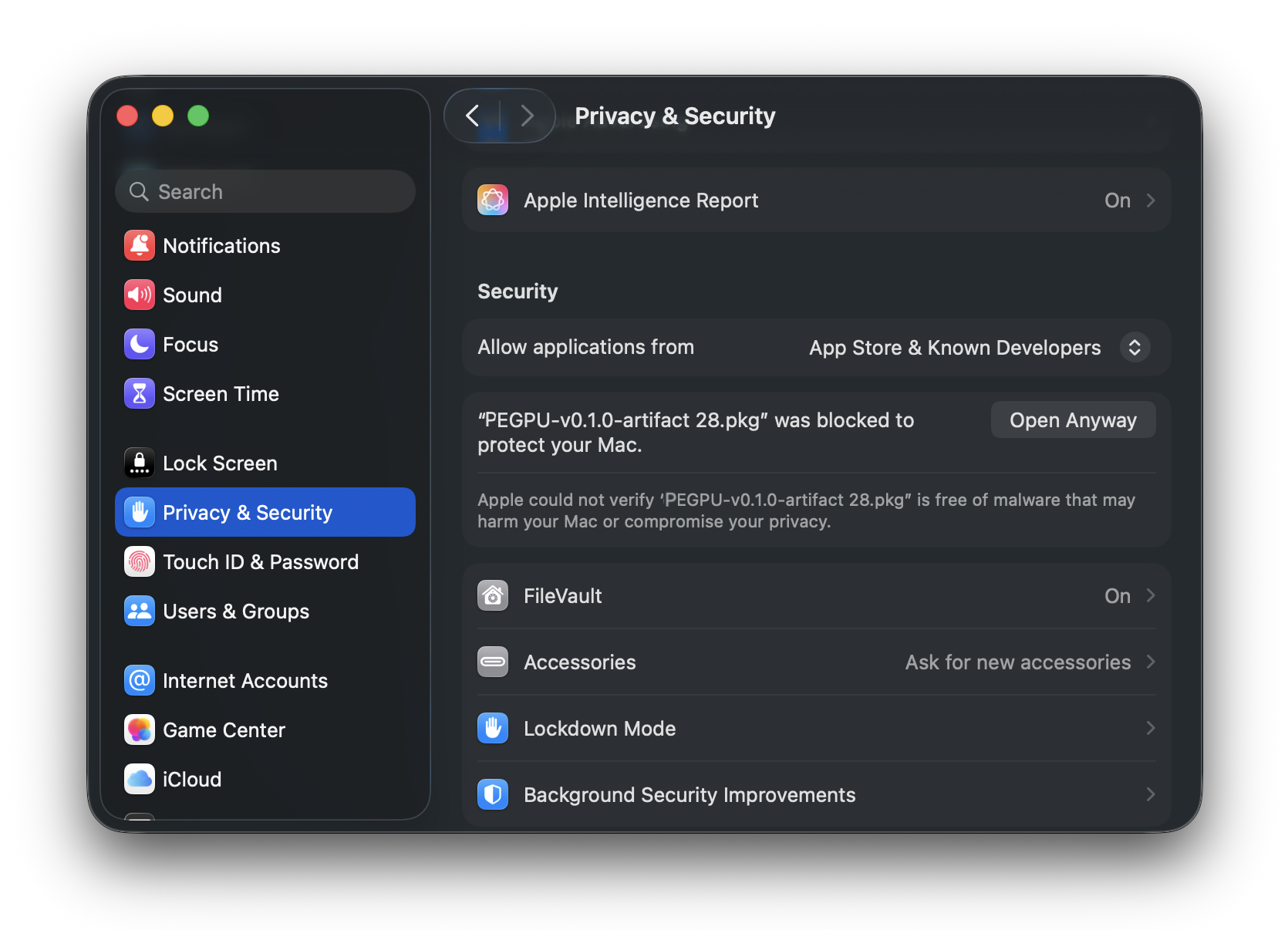
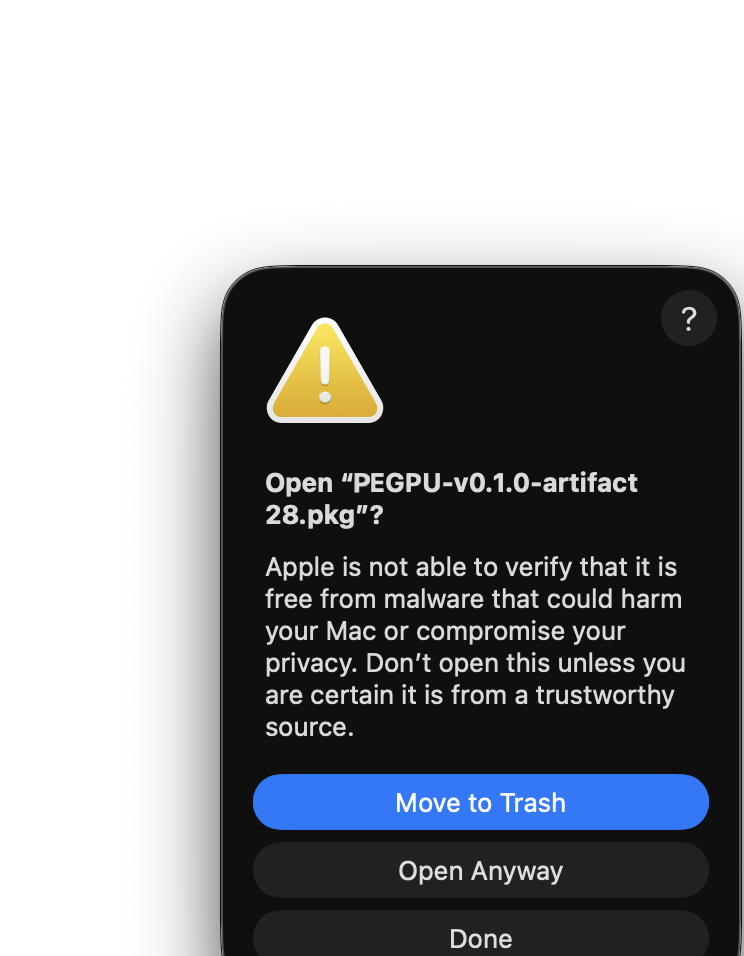
  2. Unblock the downloaded package. The package installs both PEGPU and PEGPU Machine. Because it comes from GitHub and the DriverKit side is ad hoc signed, macOS may block the first launch. If macOS says the package was not opened, go to System Settings, Privacy & Security, and choose Open Anyway for the blocked PEGPU package. You can also remove the quarantine flag from the download in Terminal:
    xattr -dr com.apple.quarantine ~/Downloads/pegpu*.pkg
    Show package unblock screenshots
    macOS warning that the PEGPU package was not opened because Apple could not verify it.
    Initial block
    Privacy and Security settings showing Open Anyway for the blocked PEGPU package.
    Open Anyway
    macOS confirmation dialog asking whether to open the PEGPU package anyway.
    Confirm open
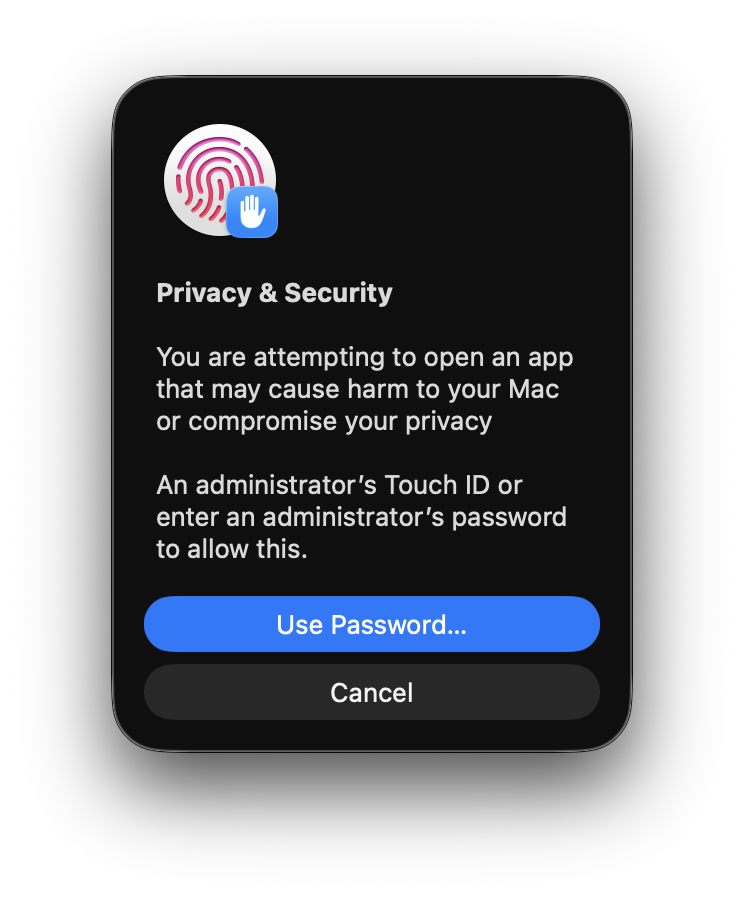
    Privacy and Security password prompt to allow opening the PEGPU package.
    Admin approval
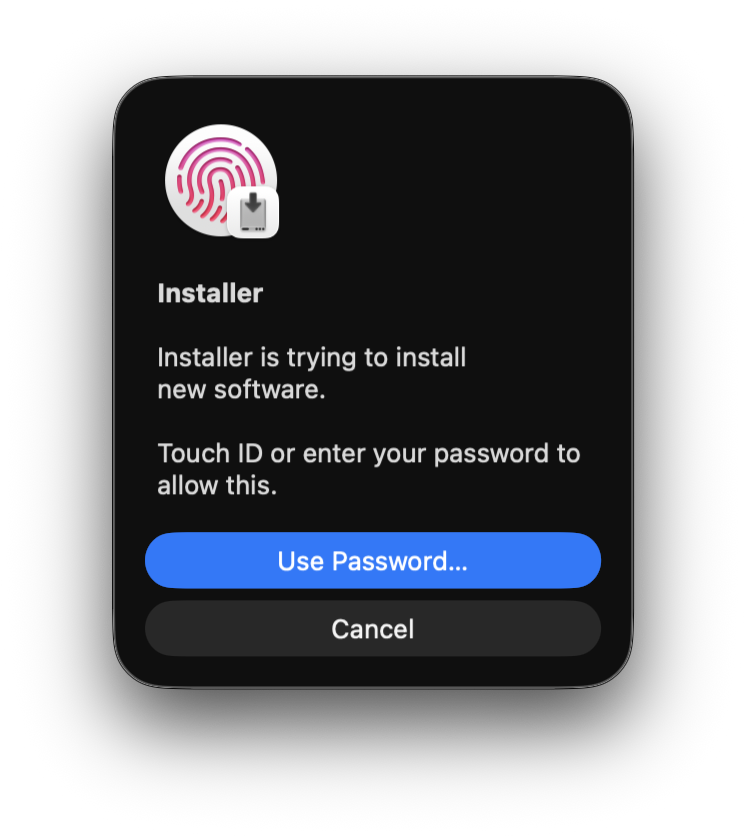
  3. Install the package. The installer password notice is the normal macOS authorization prompt for a .pkg. It installs the app plus the Machine components that let QEMU and the DriverKit extension talk to Thunderbolt PCIe hardware.
    Show package install screenshot
    macOS Installer password prompt for installing new software.
    Normal package authorization
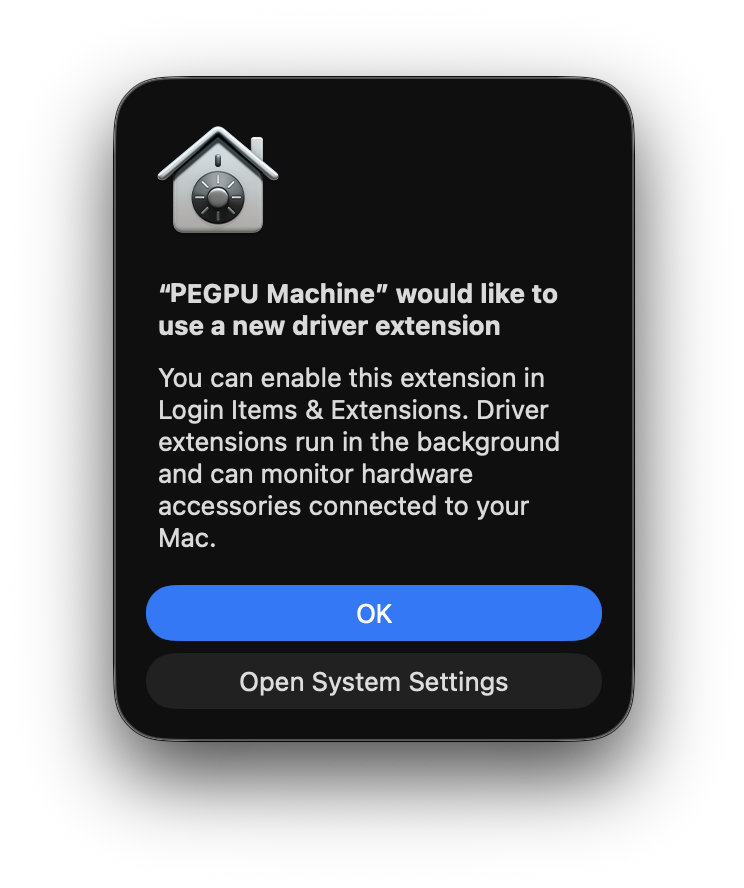
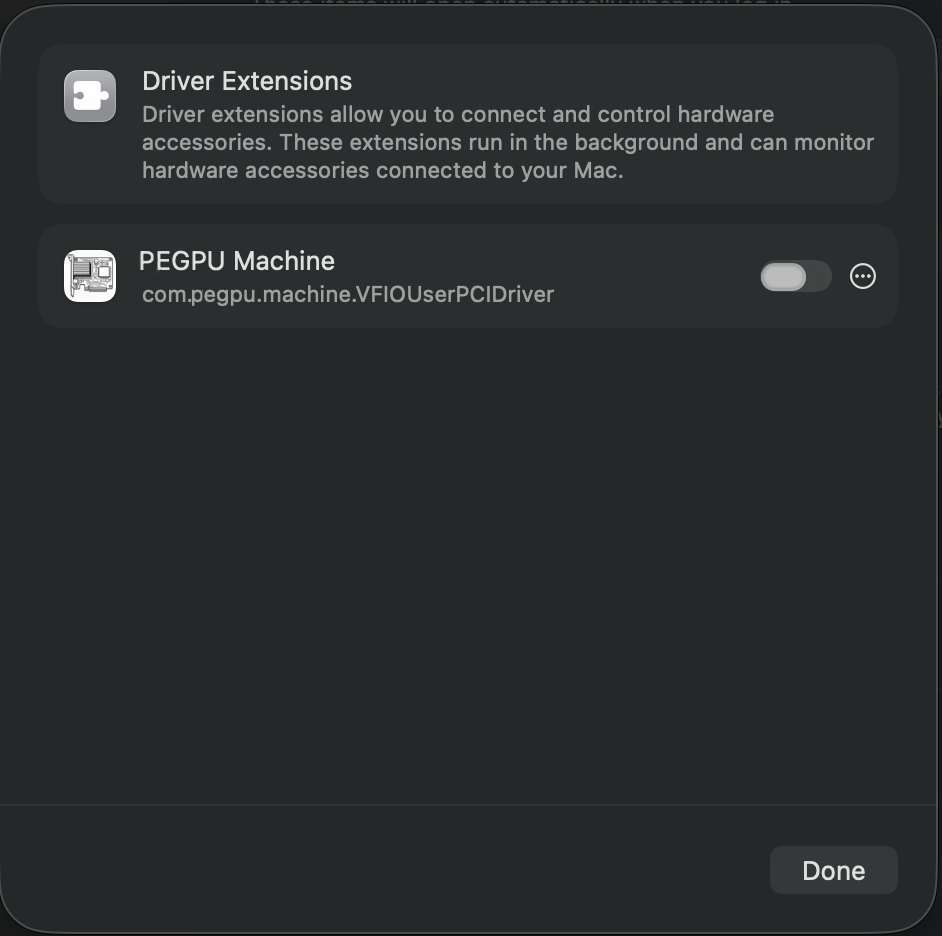
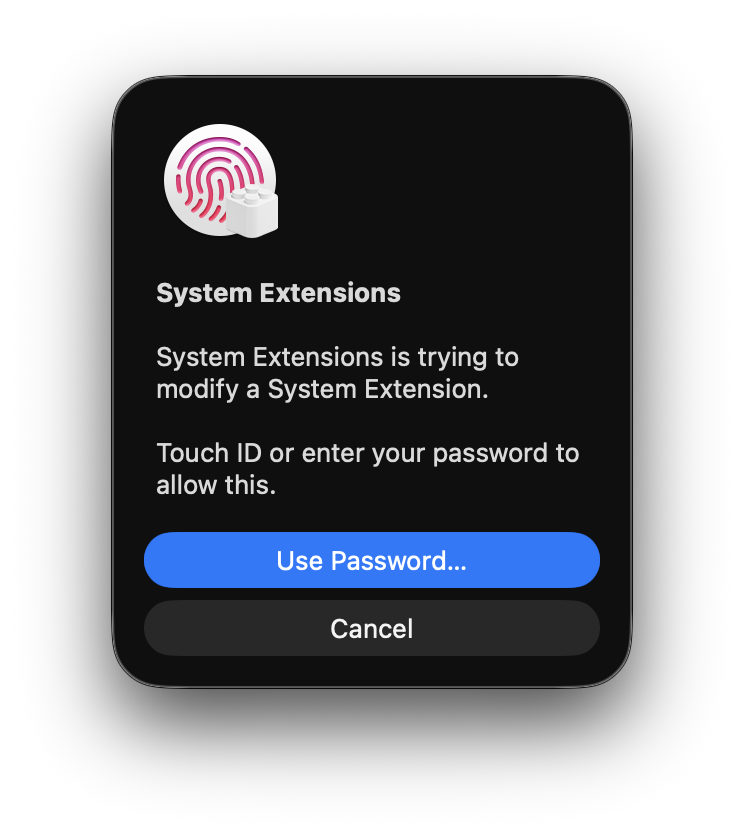
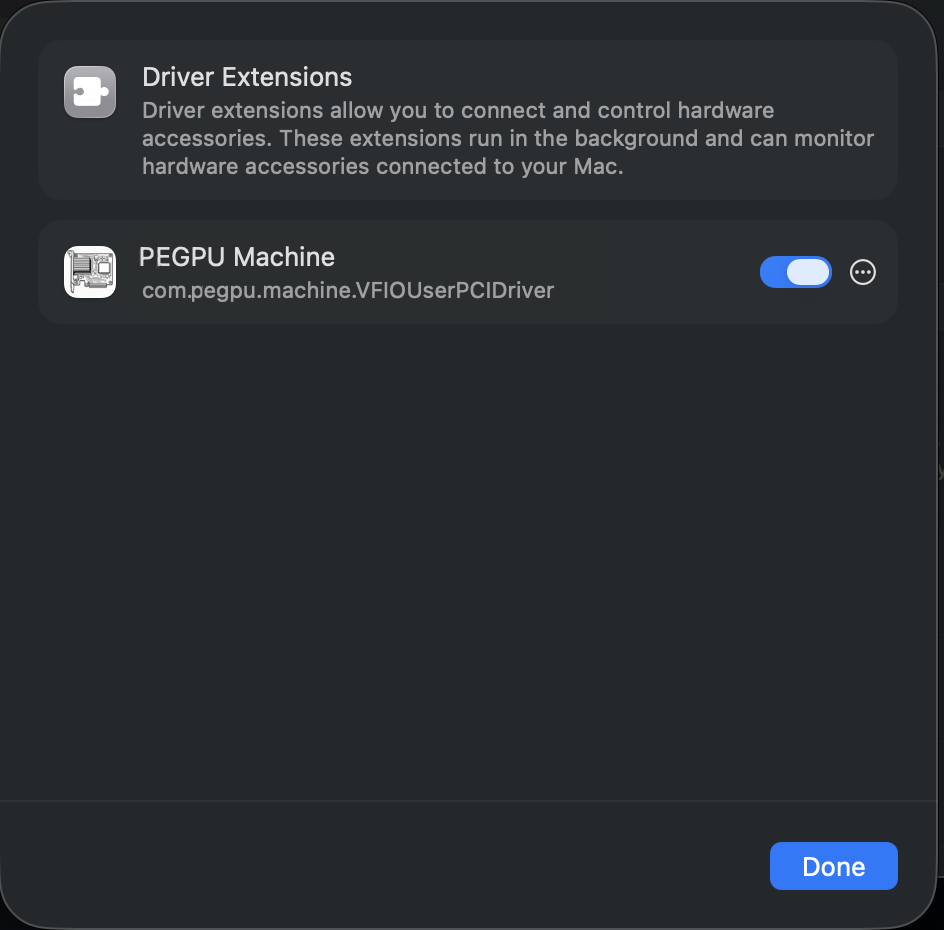
  4. Approve the DriverKit extension. When PEGPU Machine asks to use a new driver extension, click Open System Settings, not OK. OK closes the alert without opening the approval page. In Driver Extensions, enable PEGPU Machine, approve the System Extensions prompt, and confirm the toggle is on.
    Show DriverKit approval screenshots
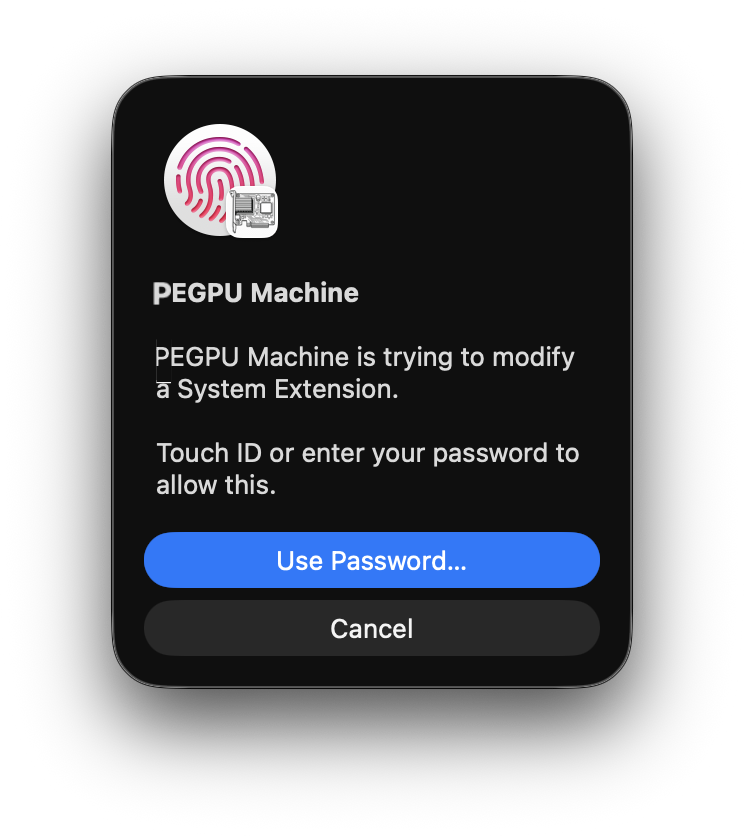
    Password prompt saying PEGPU Machine is trying to modify a System Extension.
    Allow modification
    macOS driver extension alert with Open System Settings button below OK.
    Choose Open System Settings
    Driver Extensions settings showing the PEGPU Machine extension toggle off.
    Toggle on
    System Extensions password prompt to allow modifying a system extension.
    Confirm system change
    Driver Extensions settings showing the PEGPU Machine extension enabled.
    Enabled
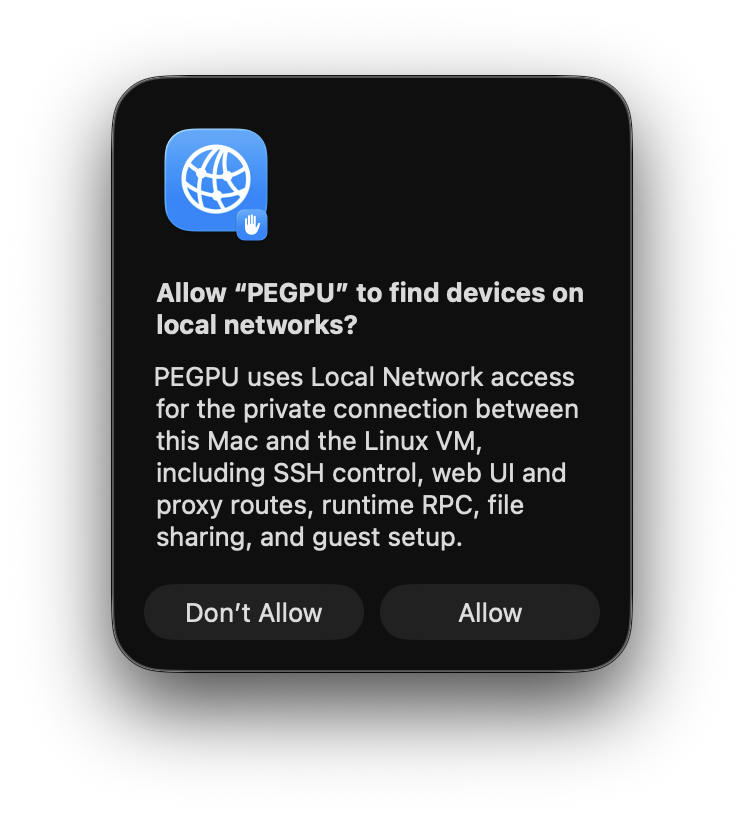
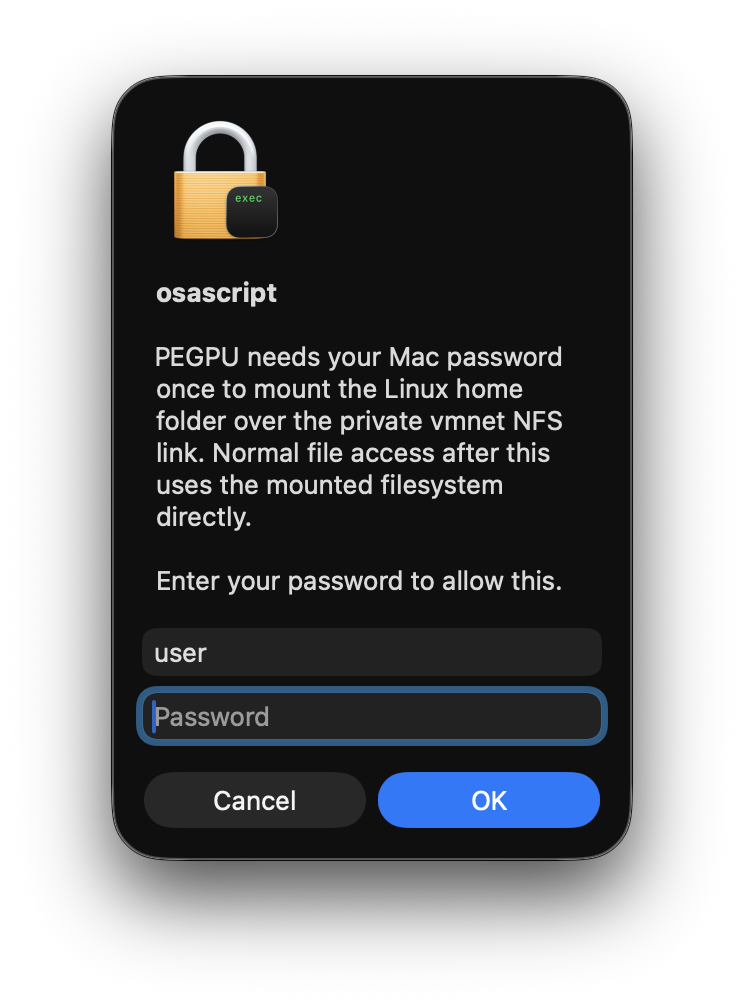
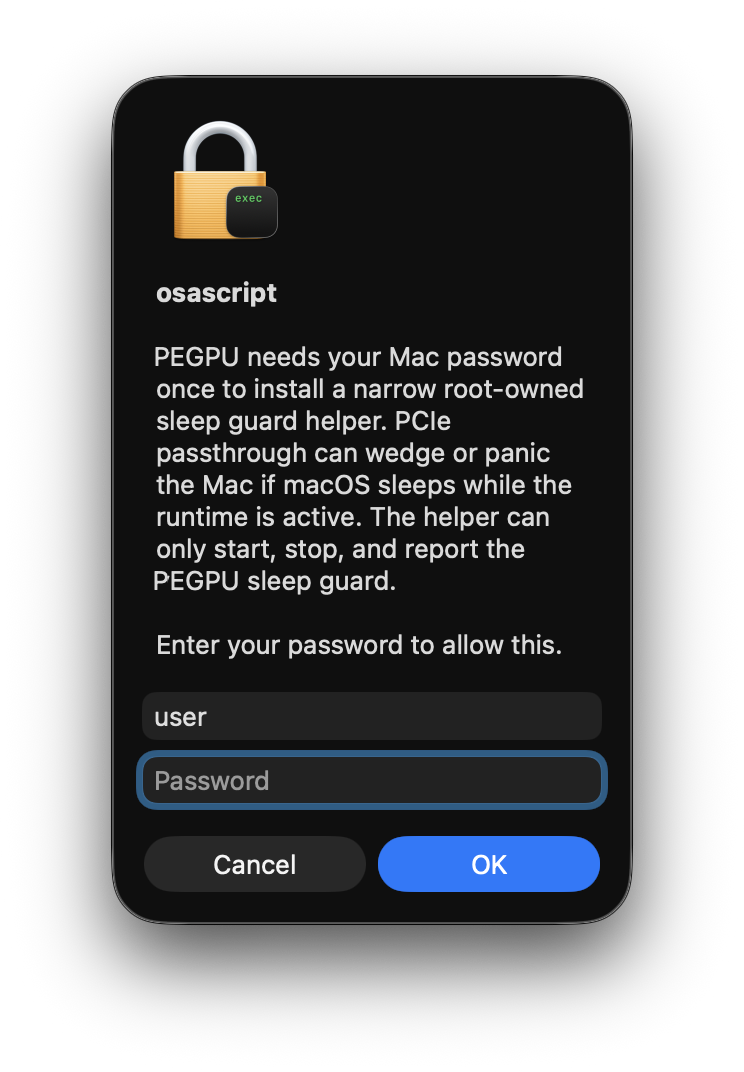
  5. Start PEGPU with no eGPU plugged in. Let it fetch the official Debian cloud image, expand the disk, run cloud-init, install base packages, and load the Linux DMA guest driver. Warning: do not plug in eGPUs for this step. Booting the VM with external GPUs attached before the Linux guest driver and NVIDIA stack are installed is very likely to kernel panic macOS. Allow the first-run helpers. Local Network access is required for the private Mac-to-VM connection: SSH control, web UI tabs, proxy routes, runtime RPC, file sharing, and guest setup all depend on it. The Linux share password prompt mounts the VM home folder over the private vmnet NFS link. The sleep guard helper prevents macOS sleep while PCIe passthrough is active, because sleep can wedge or panic the machine.
    Show first-run permission screenshots
    macOS Local Network permission prompt explaining PEGPU needs private connection access to the Linux VM.
    Allow Local Network
    Password prompt for mounting the Linux home folder over the private vmnet NFS link.
    Mount Linux share
    Password prompt for installing the PEGPU sleep guard helper.
    Install sleep guard
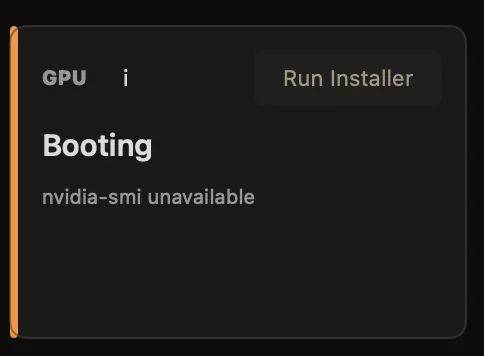
  6. Install NVIDIA support inside the VM. The helper configures NVIDIA's Debian repository and installs driver/CUDA packages via apt. PEGPU does not ship those packages. If you use NVIDIA cards, run the helper inside PEGPU after the first Debian boot finishes. You can also ignore the helper and install drivers yourself through the GUI, SSH, or the embedded terminal. Warning: do not launch with eGPUs attached before this is done. Starting the VM with NVIDIA cards passed through before the driver stack is installed is very likely to kernel panic macOS.
    Show NVIDIA installer screenshots
    PEGPU GPU card showing Booting status and the Run Installer button.
    Run Installer
    PEGPU Install NVIDIA Linux Driver confirmation sheet with Debian command preview and Install Driver button.
    Install Driver confirmation
  7. Stop the VM, attach eGPUs, then launch the server with them attached. If Sidecar does not show the cards, stop the server, unplug the eGPUs, wait 5 seconds, plug them back in, wait another 5 seconds, and launch again. This does not reinstall the VM; it gives macOS another clean chance to hand the PCIe devices to QEMU.

PEGPU does not ship a pre-made VM, and it does not pre-install GPU vendor drivers, because licensing and distribution of VM images, NVIDIA drivers, and CUDA packages gets complicated fast. First startup can take half an hour depending on the Mac and network because it fetches a clean Debian cloud image from the official Debian repository, then uses scripts to install packages and drivers from their official repositories. NVIDIA/CUDA installation can add another 20-ish minutes, and only runs if you explicitly click the NVIDIA driver install helper and accept the script and terms. You can also ignore the helper and install drivers yourself through the GUI, SSH, or the embedded terminal. Headless mode skips the XFCE dependency tree if all you want is compute, SSH, and terminal work.

personal project energy

It is a weekend-shaped obsession that escaped.

PEGPU is experimental, imperfect, and built in the open. If it helps, breaks, half-works, or does something strange on your monitor setup, that is useful signal. Issues, fixes, logs, and better ideas are welcome.